

How to Password-Protect an Email in Gmail
A development director needs to send the board treasurer a spreadsheet of major donors, gift amounts, and home addresses. She attaches it, hits send, and that file now lives in two inboxes, two phones, and whatever backups those accounts sync to. If the treasurer forwards it to the accountant, make it three. Nobody did anything wrong, and the organization has still lost control of some of its most sensitive data.
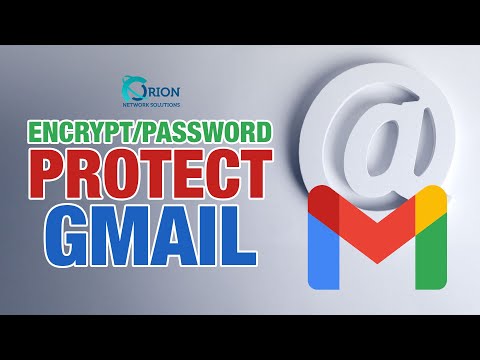
Gmail has a built-in fix for this. It takes about thirty seconds, and most people have never clicked it. Our previous tech tip video shows you where it is, and the notes below cover the choices you make along the way and where the tool stops being enough.
The Lock Icon Is Access Control, Not Encryption
The feature is called confidential mode, and it sits behind the padlock-and-clock icon at the bottom of every Gmail compose window. People often describe it as “encrypting” the email, but that is not quite what happens. Confidential mode blocks the recipient from forwarding, copying, printing, or downloading the message and its attachments, expires the content on a date you pick, and optionally requires a one-time code texted to their phone before it opens.
That is a set of controls over who can open the message and what they can do with it. It is not end-to-end encryption. It is very good at stopping accidental sharing, which is how most sensitive email actually leaks.
The Steps
- Compose your email as usual: recipient, subject, message, attachments: Click the padlock-and-clock icon at the bottom of the compose window. In the mobile app, it is under the three-dot menu in the top right.
- Under Set expiration, choose 1 day, 1 week, 1 month, 3 months, or 5 years. Match it to how long the recipient actually needs the information. A temporary login needs a day; a board packet needs a month.
- Under Require passcode, pick “No SMS passcode” or “SMS passcode.” Use the SMS option when you do not fully trust the inbox on the other end: shared computers, a personal account, an assistant with full access.
- Click Save. The bottom of the email turns light blue to confirm confidential mode is on.
- Click Send. If you chose SMS passcode, Gmail prompts you for the recipient’s mobile number. Enter theirs, not yours.
What the Recipient Sees
A Gmail user with no passcode required opens the message normally, with a banner showing the expiration date and the forward, print, and download options greyed out. A recipient on Outlook or another mail system instead gets a link that opens the message in a Google-hosted browser page, plus a passcode by email or text depending on your setting. If their email security gateway strips links, the message will not load, so it is worth a heads-up when sending to someone on a corporate system.
You Can Take It Back After Sending
This is the part the compose window never mentions. If you sent something to the wrong person, or the recipient leaves the organization, open your Sent folder, open the message, and click Remove access. The next time they try to open it, they see a notice that access was revoked. For a small nonprofit without an IT department, this is the closest thing to an unsend button that email offers.
Where It Stops Protecting You
Google is clear in its own documentation that confidential mode does not prevent screenshots or photos of the screen, and cannot protect against malware already on the recipient’s device. A few other gaps matter for organizations handling regulated data:
Expiration revokes access but does not delete anything. A copy stays in your Sent folder and on Google’s servers. The subject line and the fact that you emailed the person are still visible. Only the body and attachments are protected. Google can read the content, and so can your Workspace administrator.
If you fall under HIPAA, PCI DSS, or a funder’s data security requirements, confidential mode alone generally does not meet the encryption standard those frameworks expect.
For the small share of messages in those categories, the right answer is a secure file-sharing platform or an email encryption solution set up for the whole organization, not a per-message toggle staff have to remember.
Make It a Habit, Then Make It a Policy
Getting development, finance, and HR staff to use the lock icon for donor lists, payroll details, and personnel matters closes the most common leak immediately. Writing it into your acceptable use policy, with a default expiration and passcode setting for each type of information, turns that habit into a standard. That kind of practical, low-friction control is exactly what we build into our [Link: Cybersecurity Services Page] work with nonprofits and associations across the DC metro area.
If you are not sure how sensitive data currently moves through your organization’s email, Book a meeting with Orion Networks and we will walk through it with you.